
Free Descript alternatives for editing spoken video
Clipchamp, Kdenlive or Resolve: compare text-based cuts, timeline editing, captions and free exports for interviews and filmed podcasts.
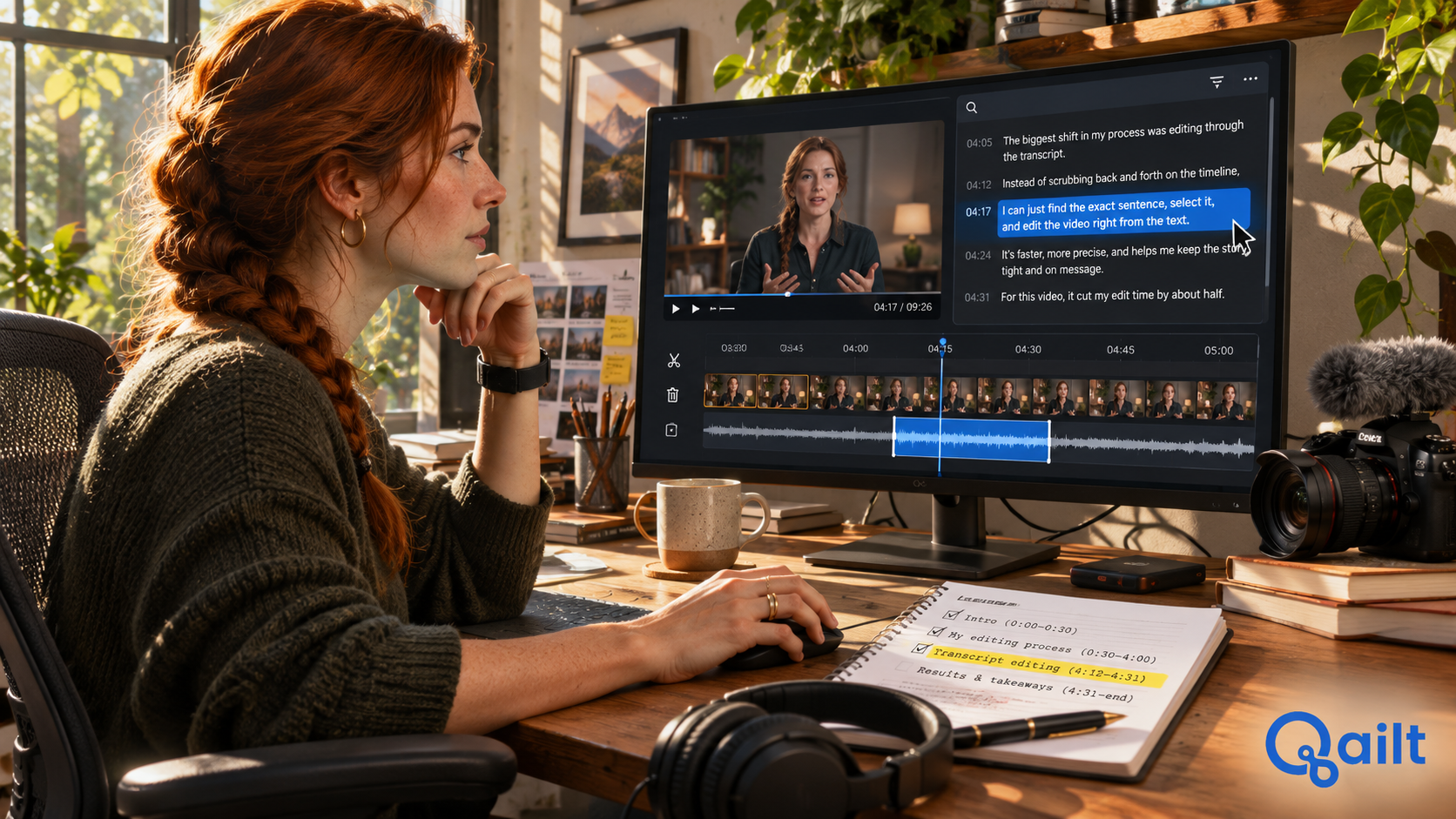
To replace Descript for free when editing spoken video, separate two needs: cutting by selecting words, and editing a timeline with help from a transcript. They are not the same feature. An editor that corrects captions does not necessarily remove the corresponding picture and sound when you delete a sentence.
This documentation-based selection was checked on November 13, 2026. It covers interviews, presentations, and filmed podcasts, not generating a video from an article. No software was timed here. The proposed small project helps evaluate your actual workflow before moving an entire library.
The quick choice
- You want a straightforward route to HD export: begin with Clipchamp and check features in your account type.
- You prefer installed software and accept setup: examine Kdenlive for editing and transcription.
- You already use DaVinci Resolve: keep it for conventional editing, but do not assume text-based editing belongs to the free version.
The best replacement is not the application with the feature list most similar to Descript. It is the one that removes a hesitation, preserves meaning, and delivers a clean file without a last-minute restriction. If text-based cutting is essential, test that exact feature before comparing secondary benefits.
What the alternatives actually provide
Clipchamp: account type matters
Microsoft documents automatic captions for personal and work accounts; the work section describes removing video by selecting transcript text. Verify that route in your account instead of inferring it from the presence of captions.
The personal pricing page advertises free watermark-free exports up to 1080p. This does not include every premium asset or effect.
Kdenlive: installed editing with recognition to configure
Kdenlive is free and open source. Its manual describes Vosk or Whisper recognition and language-model selection for caption generation. Setup is required; do not present transcription as instantly configured on every installation.
DaVinci Resolve: editing alternative, not free equivalence
Blackmagic lists text-based editing among Resolve Studio features. The free version remains an option for conventional editing, but should not be recommended as an identical free Descript replacement.
Correcting text does not rerecord speech
Distinguish three operations. Fixing a caption typo changes what viewers read. Cutting a sentence removes media. Rewriting what someone says requires a new recording or a separate voice transformation. Do not combine these different actions under a vague promise of “AI editing.”
Interview edits must preserve context too. Removing a negative or joining distant sentences can change the speaker's meaning. Keep the original and hear the complete answer before shortening it. A smooth transition does not prove that the meaning was preserved.
Prepare a short exercise
Use an authorized two- or three-minute sequence containing a repetition, a pause, a proper name, and a sentence that must remain complete. Copy the files into a trial folder. Do not use your only working copy for comparisons.
Define five outcomes: remove the repetition, shorten the pause, preserve the important sentence, correct the name in captions, and export a playable video. This procedure is proposed, not executed for this article. It prevents comparing one application on an easy clip and another on a complicated interview.
If text-based editing exists in your account, select only the unwanted words and inspect the cut. Otherwise, use the transcript as a time reference and cut on the timeline. Record the difference honestly: a similar result may require more steps without being impossible.
Listen around every cut
Listen to two seconds before and after the edit. A selection that looks correct in text can cut a breath, the beginning of a consonant, or laughter connecting two speakers. Adjust boundaries using the waveform or timeline if the transition sounds abrupt.
Do not remove every pause. Some help viewers understand a point or distinguish a question from its answer. In a tutorial, silence may give viewers time to see an action. A faster pace is not automatically a better video.
Then inspect the picture. A jump in posture or facial position may be visible even when sound is smooth. Keep the cut, cover it with a relevant authorized shot, or accept a longer pause. The decision depends on the material rather than a universal automatic rule.
Keep a short edit log for sensitive passages. Note the original time range and why it was shortened. If a speaker asks what changed, you can compare the versions without reconstructing the whole process. This is particularly useful when several people review an interview.
Review captions after editing
A transcript created before cuts may become misaligned. Check opening lines, a middle passage, and the ending, then review names and numbers. Do not deliver captions describing a sentence that no longer appears.
Choose between burned-in text and a separate caption file. Burned-in captions remain visible but are harder to correct after export. A separate file depends on the player or platform. Preserve a version without burned-in captions if you expect additional languages.
Test export before the real project
Export the exercise using your intended final settings. Open it outside the editor and check its beginning, ending, speech levels, and resolution. A smooth preview does not establish that the delivered file contains the right sound or duration.
Use your own pictures and audio for this first trial. That separates editor restrictions from the rights or premium options of a stock library. If an upgrade prompt appears, identify the responsible element instead of paying merely to finish an already lengthy project.
For transcription, do not turn an absent displayed quota into an unlimited-use promise. Check current limits, media duration, and any online processing. The budget also includes correction time and storage for sources, projects, and exports.
Measure the full task, not only the transcription wait. Record time spent fixing words, adjusting awkward cuts, and resolving export issues. An application that transcribes quickly can still be slower overall if ordinary revisions require repeated work.
Make migration manageable
Keep sources, the editable project, final video, captions, and a short note about edits together. An exported video is not an editing project: it does not automatically restore separate tracks and adjustments in another application.
Do not migrate every old project before completing one representative new project. If it works, document the route briefly. Missing text-based editing may be an acceptable tradeoff when manual cuts are quick. If every revision becomes painful, the advertised price is not the only criterion.
Frequently asked questions
Which free tool replaces Descript exactly?
Do not assume one does. List the features you actually use and verify each: text cuts, captions, voice work, collaboration, and exports. Free offerings may cover only part of that route.
Should audio be cleaned before cutting?
Always keep an intact source and try a short excerpt. Difficult audio can impair transcription, while excessive cleanup can damage the voice. Our guide to audio noise removal covers that separate step.
What about replacing CapCut on a computer?
That is broader: vertical layouts, titles, effects, and file compatibility matter too. Here the priority is spoken video: understand the text, cut accurately, and verify the delivered file.
To identify the text-based editing workflow you may want to preserve, consult the Descript overview before comparing alternatives.
Related tools

Descript
Descript records and edits podcasts, interviews, and videos using a transcript synchronized with the audio and video tracks.
Read next

Top 10 AI tools for social media managers
Ten AI tools for social media workflows: visuals, video, writing and planning. Compare approval, formats and real campaign costs without duplicate subscriptions.
Top 10 AI tools for a podcast production workflow
Ten AI tools for podcast preparation, editing, transcription and promotion. Build a minimal workflow with audio, quotation and cost checks.
CapCut alternatives for PC: editing, captions and exports
Clipchamp, Shotcut or Resolve: test your files, vertical layouts, captions and export limits before switching from CapCut on a PC.