
CapCut alternatives for PC: editing, captions and exports
Clipchamp, Shotcut or Resolve: test your files, vertical layouts, captions and export limits before switching from CapCut on a PC.
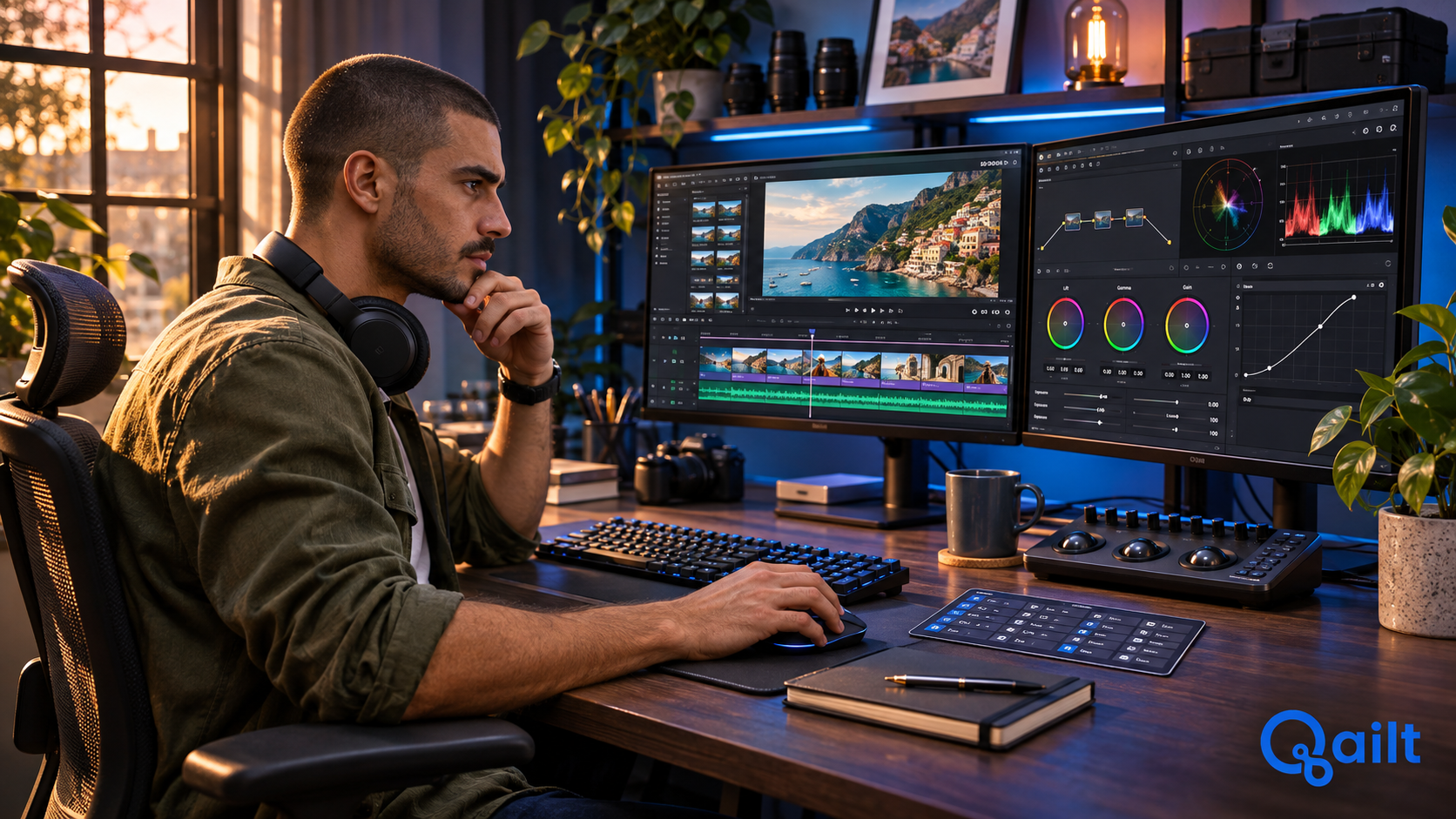
To replace CapCut on a PC, choose around your actual edit rather than the presence of an AI button. A short vertical video, a multicamera interview, and a color-intensive project impose different demands. Your first trial should cover your files, captions, and final export.
This documentation-based selection, checked on November 13, 2026, examines Clipchamp, Shotcut, and DaVinci Resolve. No PC performance benchmark was conducted for this article. The procedure lets you measure behavior on your machine instead of trusting a general speed promise.
Three possible directions
- A simple edit with a guided starting point: examine Clipchamp and plan restrictions before beginning.
- An installed timeline-focused editor: examine Shotcut, particularly for control over tracks and output settings.
- A broader editing, color, and audio workflow: examine DaVinci Resolve, distinguishing free and Studio versions.
Before switching, write down three concrete reasons: cost, a missing feature, export trouble, performance, or project organization. Otherwise you may move the same problem to another editor. An alternative should solve the main need, not merely provide more menus.
What the offerings say
Clipchamp: check HD delivery on your project
Clipchamp advertises free watermark-free exports up to 1080p. Premium options remain separate, so test using the actual elements you intend to include.
Shotcut: tracks, captions, and proxies
Shotcut's official feature list includes multitrack editing, caption creation and export, and low-resolution proxies. These working copies help editing; they should not be confused with final output quality.
DaVinci Resolve: separate free from Studio
Blackmagic describes Resolve Free as supporting 8-bit formats up to 60fps and Ultra HD 3840 × 2160. Some AI capabilities, including text-based editing, are listed under Studio. Do not transfer Studio promises to the free version.
Installed applications, browsers, and online processing
Do not reduce the comparison to “on PC.” Record where you work, where media is stored, and which features need a connection. Installed applications may still use online services for some functions. Likewise, a browser interface does not mean every operation follows the same processing route.
Microsoft says Clipchamp automatic captions use Azure Cognitive Services to process audio. Check authorization before enabling this on confidential footage.
For a sensitive project, begin with a neutral sequence. You can test cuts, titles, and exports without submitting a private interview. The technical choice must fit project rules, not merely the most convenient feature.
Build a useful comparison project
Prepare one minute with three shots from your usual equipment, speech, a still image, and a title. Add a short captioned section and an aspect-ratio change if you also publish vertically. Use the same source files in each editor.
This is a proposed protocol, not a benchmark performed here. Its value is reproducing your difficulties: phone footage, external audio, vertical framing, or brand typography. A vendor's demonstration project may run perfectly while being unlike your everyday work.
- Import media and immediately check picture and sound.
- Cut a hesitation and move a shot.
- Add a readable title and correct a caption.
- Create a vertical version without cropping the main subject.
- Export and open the result outside the editor.
Record errors, confusing steps, and repetitive actions. If timing the task, separate learning the application from performing an already understood operation. A slow first attempt does not necessarily predict recurring work cost.
Compatibility: test files before rebuilding the edit
Two MP4 files may use different encodings. Test actual camera or phone files instead of deciding from the extension alone. Check a longer sequence for progressive audio-video drift.
If playback struggles, do not immediately conclude the editor is unusable. Proxies or working conversions may help but require time and storage. Shotcut also documents export choices and playback issues in its FAQ.
Keep originals. A working conversion is not a reason to replace the only source file. Identify copies and verify that final export uses the intended quality rather than a small version created only for preview.
Test the particular combinations that matter: a phone clip beside a camera clip, speech from a separate recorder, and the intended frame rate. Successful import of one file does not establish that every source in a larger project will behave the same way.
Do not confuse editing with automatic clip selection
A service that automatically selects short excerpts does not necessarily replace a full editor. It may identify passages without offering equivalent control over audio, titles, transitions, or framing. Decide whether you need excerpt discovery or a place to finish the edit.
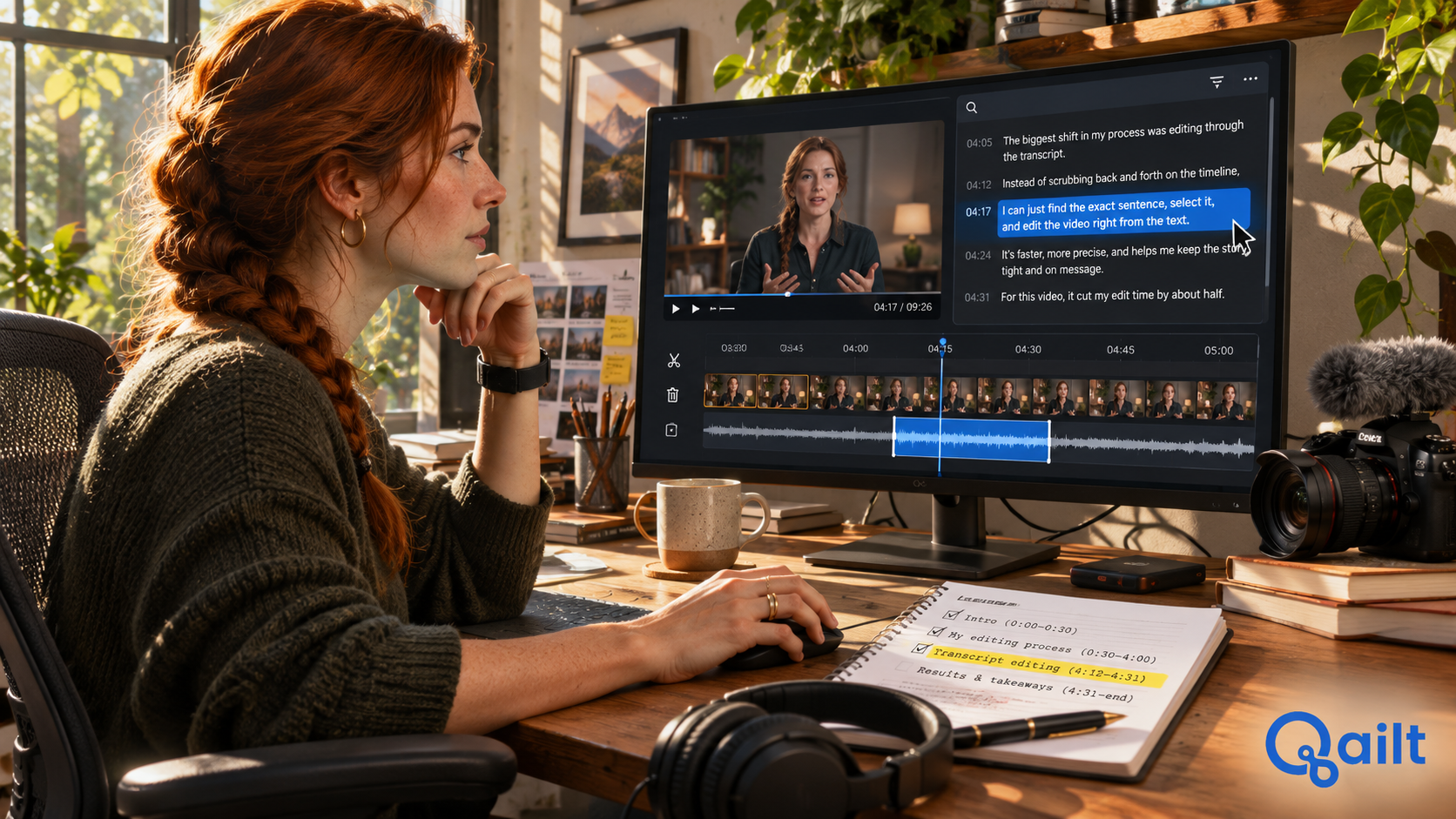
Similarly, transcription does not guarantee text-based cuts. Verify caption generation, word correction, and removal of corresponding media separately. Our guide to free Descript alternatives focuses on that distinction for spoken videos.
The final export check
Watch the complete file rather than only its first seconds. Check for missing media, out-of-frame titles, unexpected silence, and misaligned captions. Compare intended duration with the exported file.
Also check commercial restrictions before the real project: watermarks, resolution, reserved effects, premium assets, and conditions governing included material. “Free to install” does not make every advertised feature free. Do not promise a watermark-free result for an unverified workflow.
Export ten seconds using the most demanding effects before editing a long video. That can reveal a restriction or encoding problem early enough to change methods without losing a day.
Keep an export checklist with the resolution, orientation, audio expectation, and caption delivery method. Reuse it for later projects so that a changed preset does not quietly alter a client's output. A consistent check is more reliable than remembering settings from the previous edit.
Leave CapCut without losing source material
Retain original video, sound, authorized fonts, logos, and exportable captions. A proprietary project does not automatically transfer all its tracks into another application. Expect that some edits may need rebuilding from sources rather than a perfect conversion.
Keep a reference export of the previous edit too. It helps compare pacing and titles but does not replace separate sources. Make the transition on a short project before removing an older working environment.
Frequently asked questions
Which is best for a modest PC?
Test on that machine with your files. Fluidity depends on formats, effects, and project structure. Avoid unmeasured hardware rankings; start with the short exercise and see whether proxies make the workflow acceptable.
Must I pay for a good result?
Not necessarily for a simple edit. Pay when an essential feature, export restriction, or observed workflow improvement justifies it. Settings and review remain necessary on paid plans.
What should decide between alternatives?
Your ability to reproduce the intended edit, revise it, and export correctly. A longer AI feature list matters less than a conforming delivery and a project you know how to reopen.
To identify the text-based editing workflow you may want to preserve, consult the Descript overview before comparing alternatives.
Related tools

Descript
Descript records and edits podcasts, interviews, and videos using a transcript synchronized with the audio and video tracks.
Read next

Top 10 AI tools for social media managers
Ten AI tools for social media workflows: visuals, video, writing and planning. Compare approval, formats and real campaign costs without duplicate subscriptions.
Top 10 AI tools for a podcast production workflow
Ten AI tools for podcast preparation, editing, transcription and promotion. Build a minimal workflow with audio, quotation and cost checks.
Free Descript alternatives for editing spoken video
Clipchamp, Kdenlive or Resolve: compare text-based cuts, timeline editing, captions and free exports for interviews and filmed podcasts.