Create images with ChatGPT
Describe a visual, generate a first image and refine it with targeted edits.

What you will create
Create an article cover image, then refine its composition without starting from scratch. Aim for a visual that remains clear at thumbnail size, relates directly to the topic and leaves room for a headline. The same approach works for thumbnails and social posts: choose the intended crop before you begin.
Before you start
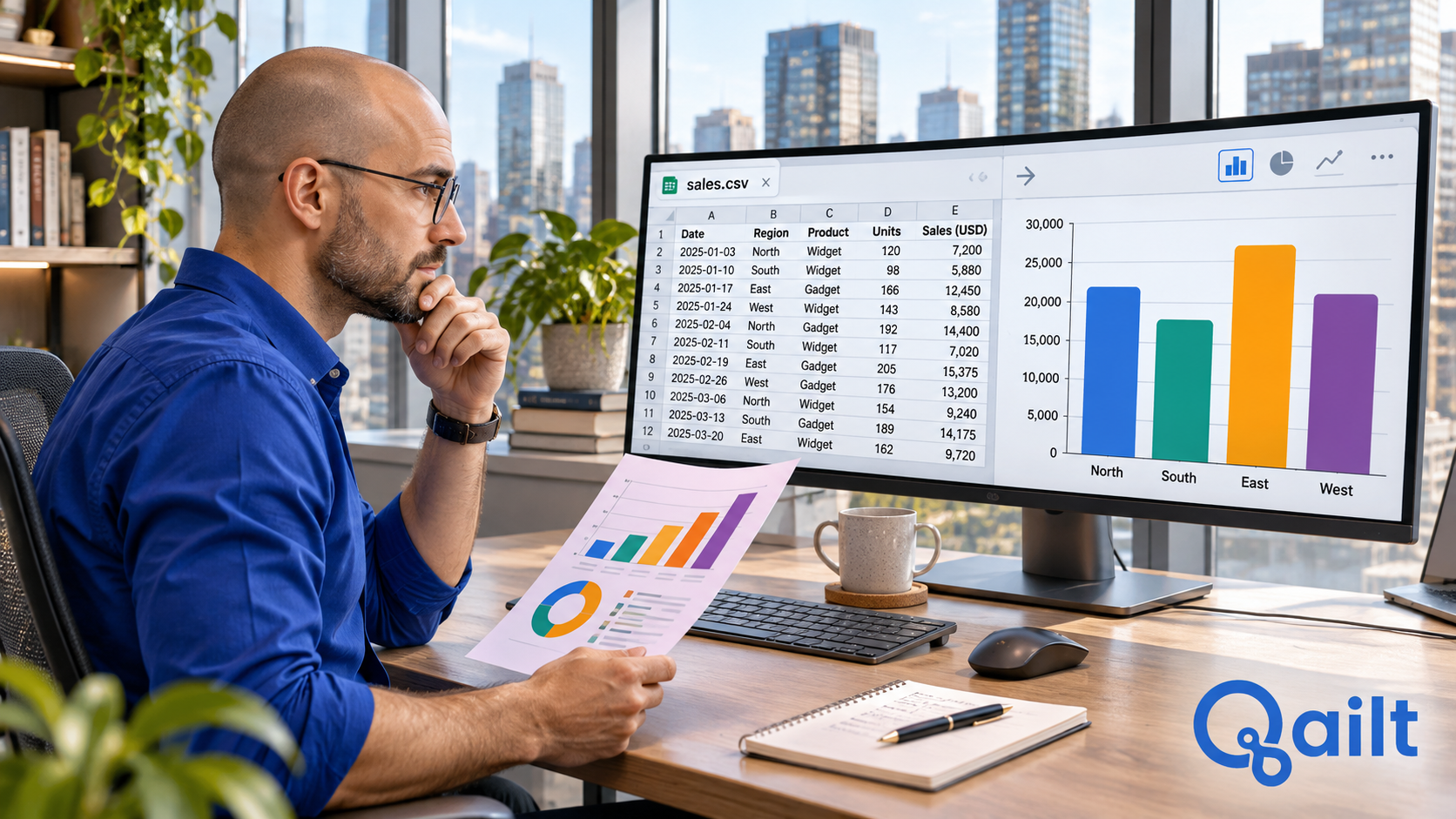
Prepare three details: the exact topic, the intended audience and where the image will appear. Choose one visual message. For an article about learning AI, a person experimenting at a computer may communicate the subject more clearly than an abstract robot. If you supply a photo, use an image you have permission to edit and avoid exposing private information on screens.
Step-by-step
- Plan the composition. Specify the main subject, its position, the mood and the space reserved for your headline. For example: a person on the right, an uncluttered desk and empty space on the left. This helps avoid an attractive image that does not fit your layout.
- Ask ChatGPT for a first image. Describe the subject, style and desired aspect ratio. Adapt the example below rather than combining several conflicting styles.
- Compare it with your brief. Is the subject immediately recognisable? Is the headline area genuinely clear? Identify the most important problem before requesting an edit.
- Request a focused change. State both what should change and what should remain the same. You can also upload an existing image to edit. Changes may affect other areas, so compare the revised image with its previous version.
- Save your chosen version. Download the image and check its crop in the final layout. An image that works full-screen can lose its subject when cropped into a card.
Example to adapt
Create a horizontal 16:9 cover image for an article aimed at beginners learning to use AI at work. Show an adult working in a bright office, positioned in the right third. Natural editorial photography, restrained colours, soft light. Keep the left third calm and uncluttered so I can add a headline later. No text, no logos, no robots and no readable interface on the screen.
For an edit: “Keep the person, colours and framing. Simplify only the background on the left to make my headline easier to read.” This is an example instruction, not a promise of an identical output.
Check your result
- View the image at mobile-card size: its subject should remain obvious.
- Inspect hands, objects, perspective and any text that appeared despite the instruction.
- Place your actual headline over the image and check contrast without covering the subject.
- Confirm that the downloaded file is the latest version you selected.
Common problems
The image feels generic: replace “an image about AI” with a specific scene and an observable action. The composition is crowded: remove secondary objects and focus on one idea. Text is incorrect: request an image without text, then add the headline in your layout. An edit damages another element: return to the previous version and request a narrower change.
Next steps
Explore the ChatGPT tool profile and improve your instructions with the guide to writing a good prompt.