
Gamma vs Canva for PowerPoint Presentations
Both export to PPTX. Compare what your recipient can edit in PowerPoint, from the headline and table to the speaker notes.
Which tool should you choose?
Try Gamma when you have an outline or notes and need a structured first draft. Try Canva when your team has a visual template or wants to arrange each slide by hand. If the client must update the numbers, test whether they can edit the table in the exported PPTX before choosing.
At a glance
| Decision factor | Gamma | Canva |
|---|---|---|
| Starting point | Generate a presentation from a prompt or outline. | Customize a template or generate a draft with Canva AI when available on your account. |
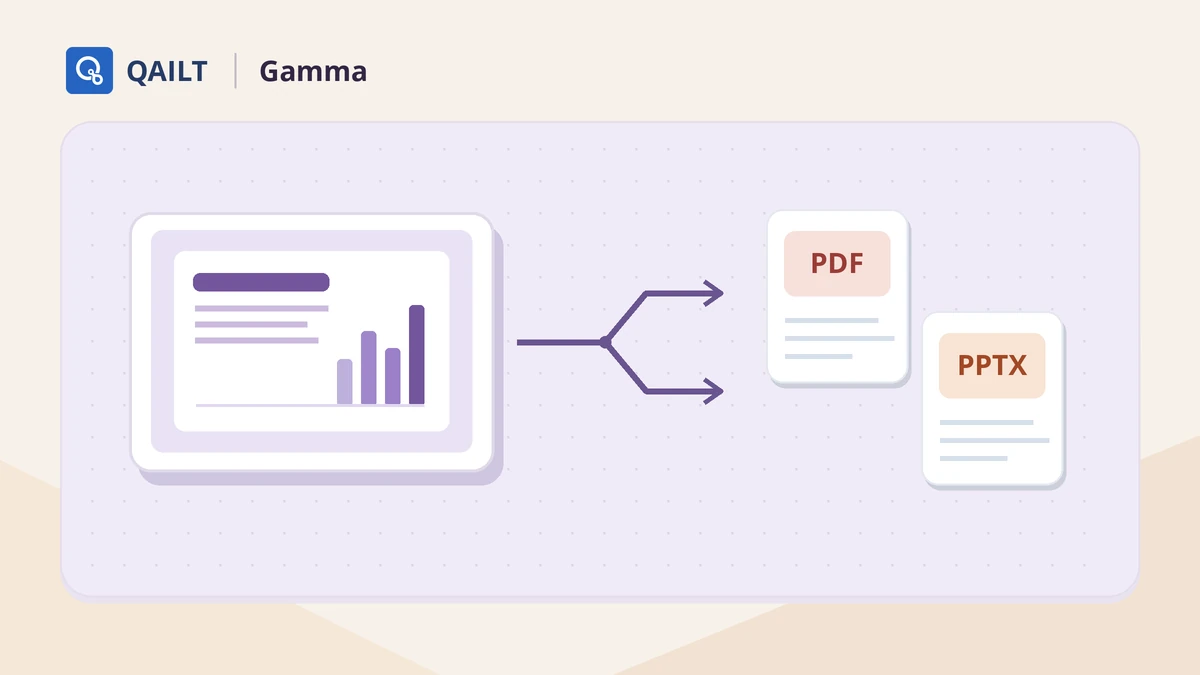
| PowerPoint export | Export to PPTX. Gamma Free adds a Made by Gamma badge. | Download a Presentation design as PPTX. |
| Objects to check | Native tables stay editable by default. Imported Google Sheets charts export as images. | Fonts and layout may shift. Canva does not support animations or embedded videos in PPTX exports. |
| Recipient handoff | Gamma documents speaker notes in the export. The PowerPoint slide master is blank. | Verify which elements remain editable on the recipient’s device. |
Choose based on what your recipient needs to change
A deck can open in PowerPoint while a chart inside it behaves like a picture. That is acceptable for a one-off report. If a client updates figures monthly, they need a table or chart they can edit. Identify who will revise the deck, which app they use and which elements must remain editable.
In Gamma, check Present mode before exporting. Gamma’s help says native tables are editable by default and speaker notes are included. A chart imported from Google Sheets exports as an image. In Canva, start from a presentation template if layout matters. Canva’s help warns that fonts and formatting can change when you open a PPTX in PowerPoint.
Build the same three-slide sample
Use this fictional brief in both tools. « Create a 16:9 presentation for Project Atlas. Slide 1, title Project Atlas Review, subtitle October. Slide 2, a table with target 120, actual 108 and variance −12. Slide 3, three actions with an owner for each and a speaker note asking the team to confirm the date. Add no other figures. »
Use the same font if it is available and add the same sample logo. If the first draft inserts a screenshot of a table, create a real table in the editor. Add the speaker note manually if needed. Export each deck as PPTX and open both files in PowerPoint.
Make five edits in PowerPoint
Change October to November. Type 112 into the actual results cell and update the variance to −8. Replace the logo and confirm the title stays put. Check the last slide’s notes in Presenter View. Save, close and reopen the deck to confirm the edits persist and no text spills out of its box.
Repeat on a device without the original fonts if your recipient uses a different setup. If a video or animation matters to the story, test playback in the recipient’s PowerPoint version. Keep a PDF as a visual reference for the approved layout.
Time the finished handoff
Record the time needed to draft the deck, finish the layout and fix the PPTX. If the recipient needs their corporate slide master, include the time it takes to apply it and rebuild any affected objects. Export details here come from the vendors’ help centers. The sample lets you evaluate the result in your own PowerPoint setup.
To put this into practice, explore Create a presentation with Gamma on QAILT.
Put it into practice
Related tools

Gamma
AI tool that turns a topic or text into an editable presentation and can also create documents and web pages.
Read next

Free Gamma alternatives for editable PowerPoint decks
Gamma already exports PPTX. Compare Slidesgo, Canva and Impress by free limits, paid elements and whether exported slides are genuinely editable.

Top 10 AI tools for students: study, research and prepare your work
Ten AI tools for understanding course material, checking sources, revising and preparing student work, with a practical use and a limitation for each.

ElevenAI opens early access for meeting notes on Mac
ElevenLabs introduces a Mac app with dictation, speaker-labeled transcripts, and action items. Free early access is available by sign-up.