
Top 10 AI tools for students: study, research and prepare your work
Ten AI tools for understanding course material, checking sources, revising and preparing student work, with a practical use and a limitation for each.

To understand a concept, start with ChatGPT’s study mode or Gemini’s Guided Learning. To ask questions about your own course materials with citations to relevant passages, consider Gemini Notebook. To turn checked notes into revision questions, look at Quizlet if your account is eligible. The remaining tools address more specific tasks: research, wording, translation, presentations and organisation.
The order follows stages of student work rather than performance scores. Start with one or two tools, then add a feature only when you need it.
Which tool fits which task?
| Tool | Main use | What to check |
|---|---|---|
| ChatGPT | Understand through guided questions | Accuracy of the reasoning |
| Claude | Review a draft against its assignment | Which file content was actually read |
| Gemini | Explore a concept with visual support | Feature availability on mobile |
| Gemini Notebook, formerly NotebookLM | Ask questions about course material | Context of cited passages |
| Perplexity | Find external sources | Quality and date of original documents |
| Quizlet | Create revision cards | Answers, access and age requirements |
| QuillBot | Clarify your own writing | Meaning and technical terminology |
| DeepL | Read material in another language | Terminology and plan limits |
| Gamma | Prepare a presentation | Facts, sources and layout |
| Notion AI | Organise notes and group work | Complete instructions and AI access |
Ten tools with practical student uses
1. ChatGPT: work through a method step by step
Study mode in ChatGPT uses questions and gradual explanations. You can provide an excerpt from your course and describe where you are stuck. It can still make mistakes or give a direct answer: explicitly request hints, then compare its reasoning with your course material.
Example: “I’m revising conditional probability. Ask one question, wait for my answer and give me a hint before the correction.” QAILT’s guide to writing a good prompt helps you set that context.
2. Claude: get feedback on a draft
Claude accepts documents attached to a conversation. When preparing an assignment, provide your draft alongside the instructions and ask for focused feedback on its structure or claims that need evidence. For documents other than PDFs, Claude extracts the text and does not interpret embedded images.
Example: “Here are the assignment instructions and my introduction. Identify three claims that need evidence and explain why, without rewriting the passage.” Review those suggestions yourself before changing the draft.
3. Gemini: explore a concept with visual support
Guided Learning in Gemini lets you approach a topic using explanations, supplied files and illustrations. Consider it when another representation of a process would help. Some features are rolling out gradually in the mobile app; the web version may offer a feature that has not yet reached your phone.
Example: “Compare conduction and convection with a simple diagram, then ask me an application question.” Check arrows, units and labels against your reference material before using the diagram in your notes.
4. Gemini Notebook: work with your own course material
Gemini Notebook, formerly NotebookLM, lets you select sources and ask questions about their content. Its citations lead to the passages used. This is useful when you have a set of course documents and need to compare definitions or locate a specific argument.
Example: “Compare the definition of economic growth in these two chapters and cite a passage for each difference.” Open the citations: a response linked to a document still depends on that document’s quality and context.
5. Perplexity: begin a research task
Perplexity provides answers with sources and can help you discover documents at the start of an assignment. Follow the links back to the original publications. A citation alone does not establish that a text is suitable for academic work.
Example: “Find two recent institutional reports on light pollution. Give the organisation, date and link.” Then check the authors, methods and relevant pages before including a reference in your bibliography. Keep the original document available while you write.
6. Quizlet: turn notes into revision questions
Quizlet Study Guides turn uploaded or pasted notes into a study outline and editable flashcards. Free access is limited. Eligibility also depends on country and age: in France, this feature requires users to be at least 18.
To turn a specific chapter into questions with an answer key, see our guide to AI tools for creating quizzes from course notes. It includes a short fictional passage and a reference answer key for checking the output.
Example: start with a checked chapter, create cards for its definitions and correct the wording before testing yourself. A short card may leave out an important condition; keep an example or exception when the course requires it.
7. QuillBot: improve the wording of your own text
QuillBot suggests alternative wording and highlights changes. It can help you shorten an overlong sentence or reduce repetition. You remain responsible for the meaning: compare nuances, dates and technical terms after each suggestion.
Example: paraphrase a paragraph from your draft, then accept only changes that make it clearer. The tutorial on paraphrasing a paragraph with QuillBot guides this review. Keep the references for any ideas you cite, even when the wording changes.
8. DeepL: read a source in another language
DeepL file translation processes a document while retaining its presentation. It requires an account; available formats, sizes and quotas depend on the plan. For a scientific or technical paper, keep the original text beside the translation.
Example: translate an English paper into your preferred language to understand its structure, then compare the central passages and specialist terms with the original. Translation helps you read the source; your review still needs to address the arguments within it.
9. Gamma: build a presentation from an outline
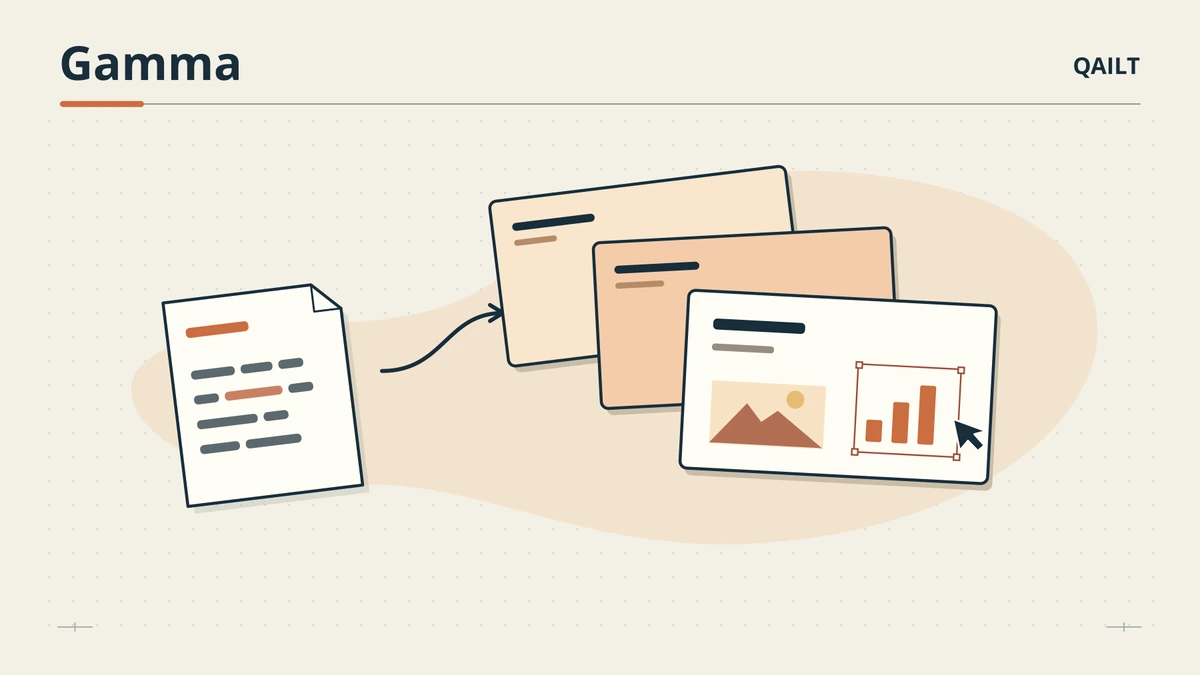
Gamma can use text or imported files to build a presentation. Supply an outline and facts you have already checked, then specify what should be preserved. Some fonts may be substituted during import: review the result in the format you will present.
Example: “Prepare six slides from this outline, with one idea per slide, keeping the supplied references.” The guide to creating a presentation with Gamma helps you move from an outline to a slide deck.
10. Notion AI: organise a student group project
Notion AI helps you work with pages, notes and databases in a workspace. For a group project, first collect the instructions and decisions already made. Free and Plus plans offer a limited number of complimentary responses to try Notion AI. Business and Enterprise include Notion AI, but some models consume additional credits and must be enabled by the workspace owner.
Example: “Using these instructions, propose a task table with an owner and deadline. Leave missing information blank.” Have the group agree on responsibilities before relying on the table. Clear source material matters more than a detailed-looking plan.
A simple study workflow
- Define what you need to be able to do. Gather the chapter, exercises and marking criteria. Write a concrete objective, such as explaining a process or solving a particular type of problem. Then select the tool that addresses your difficulty.
- Understand before summarising. Ask about a specific passage. Request an example and try explaining it in your own words. If the explanation appears to contradict your course, return to the document or ask your teacher.
- Check what you can do independently. Choose an exercise for which you already have the course’s worked solution. Hide that solution, request one hint at a time and attempt your answer before revealing it. Compare the steps with the reference solution. Finish with a similar exercise without AI and identify exactly where you still get stuck.
- Prepare the work you will submit. Build your argument, calculations and bibliography. Request feedback on a specific difficulty, then review the final version yourself. For a presentation, also practise explaining the material aloud without depending on the slides.
Start without collecting subscriptions
Begin with an assistant for understanding and a tool for organising your sources or revision. Add translation, wording support or presentation software when the task calls for it. Before paying, check that your account includes the feature you need and that its limits fit your planned documents.
Also check what your course permits and how to disclose the help you receive. A useful outcome is work you can explain, with sources you recognise and important steps you have checked.
If you are mainly deciding which general assistant to use, our selection of ChatGPT alternatives by task explores the differences between web research, writing and working with documents.
Put it into practice


Related tools

Perplexity
AI answer engine for finding, summarizing and exploring information with sources

Gemini
Multimodal AI assistant capable of working with text, images, audio and video

Claude
AI Assistant for analysis, writing and code support to work faster on complex tasks

ChatGPT
Versatile AI assistant to search, write, analyze and automate many everyday tasks

Notion AI
AI Assistant integrated with Notion to research, write, analyze and organize information more efficiently

Gamma
AI tool that turns a topic or text into an editable presentation and can also create documents and web pages.
QuillBot
Writing assistant that paraphrases text and helps adjust its style or correct its grammar.
Read next

ChatGPT alternatives: which tool fits your task?
Choose between Claude, Gemini, Perplexity, Gemini Notebook and Copilot by task. Check practical limits and compare two tools with a repeatable exercise.

AI for Productivity: Simple Ways to Save Time Every Day
Explore simple ways to use AI to organize work, summarize information, and save time daily.

Free Gamma alternatives for editable PowerPoint decks
Gamma already exports PPTX. Compare Slidesgo, Canva and Impress by free limits, paid elements and whether exported slides are genuinely editable.