Correct automatic captions in Kaltura MediaSpace
Review an existing Kaltura caption track, correct words and timing, then check the saved result in the player.
What you will create
Correct an existing caption track and check that its words appear at the appropriate time. Aim for a traceable review, not accessibility certification or a new transcription order.
Before you start
Choose fictional demonstration media in your authorised Kaltura space, with editing rights and a track already available. Do not practise on a published course or real interview. Editor availability depends on portal configuration and permissions; do not order REACH services to work around a missing option.
Step-by-step
- In My Media, open the media menu and choose Edit. The documented portal workflow uses Accessibility, then the caption track menu and Launch editor. If your instance differs, check your institution’s guidance instead of changing configuration.
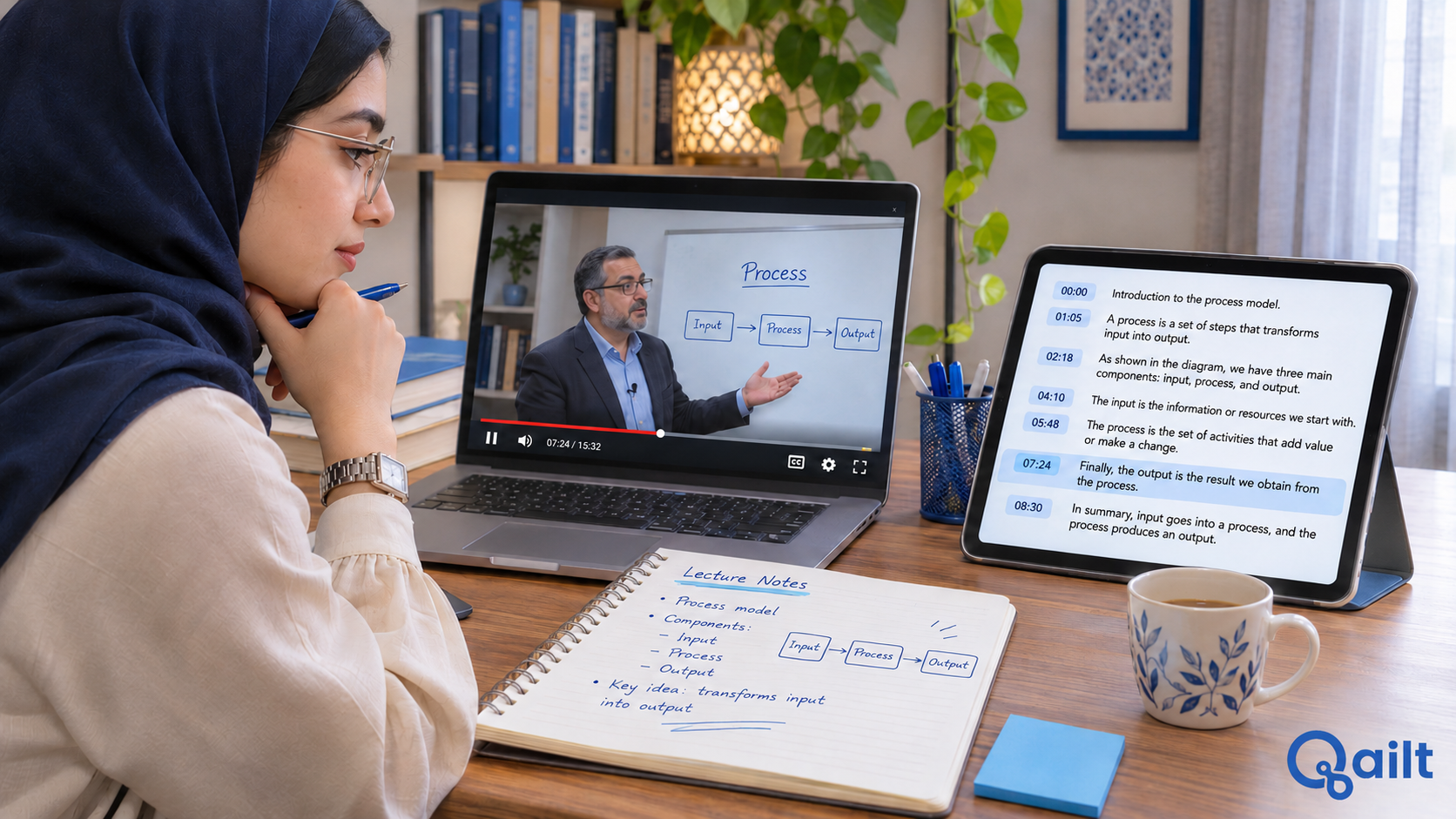
- Check the selected language and track. Find one specific error and select its row to listen in context.
- Correct words against the audio, without arbitrarily rewriting the speaker. Adjust timing only when the caption does not match the spoken passage.
- Review the preceding and following rows. Avoid unintended overlaps and splits that detach a negation from the rest of its sentence.
- Use Save. If asked to estimate accuracy, base it on what you actually reviewed rather than marking the entire track perfect after one correction.
Example to adapt
Fictional spoken sentence: “There are fifteen cards left, not fifty. Do not close the box.” Captions saying “fifty cards” or “close the box” reverse the meaning. For each error, record the original text, what you heard, the correction and the segment replayed. Prioritise numbers and negation over more elegant phrasing.
Check your result
Reopen the player and enable the correct track. Check fifteen, not fifty and do not close, including synchronisation. Then review the complete excerpt: a local correction does not establish accuracy elsewhere. If a transcript is displayed, inspect it too instead of assuming it updated.
Common problems
A missing option may reflect permissions or configuration. Global replacement can alter correct occurrences: review matches individually. If audio is ambiguous, record the uncertainty and seek review rather than inventing words. Saving may alter a track already available to its readers.
Next steps
Keep your correction list and identify any unreviewed passages. Distribution remains a separate decision. No account, media or caption track was modified and no transcription service ordered to write this guide.