Who this tool is for
Upscayl Desktop is for people who want to enlarge images on their own computer. Hardware suitability comes first: running Linux, macOS or Windows alone does not establish that a particular machine is compatible.
What you can do
The application offers multiple AI models and configurable output resolution, with image processing performed locally. Upscayl Desktop and Upscayl Cloud are separate offerings, so their features and operating arrangements should not be treated as interchangeable.
How it works
To assess whether upscaling is useful, work from a copy and leave the original unchanged. Choose a model and output resolution, then compare the result with the original at identical display size, examining edges and textures.
Prerequisites
A Vulkan-compatible GPU is required; many integrated GPUs are unsupported. Compatibility cannot be promised for an individual computer. Mac App Store distribution is paid, so avoid assuming every distribution is free.
Limitations
AI estimates possible image details; it cannot guarantee genuine recovered detail, faithful text or accuracy. The application does not fix out-of-focus or heavily blurred images. A larger output is not evidence of greater factual fidelity.
Practical example
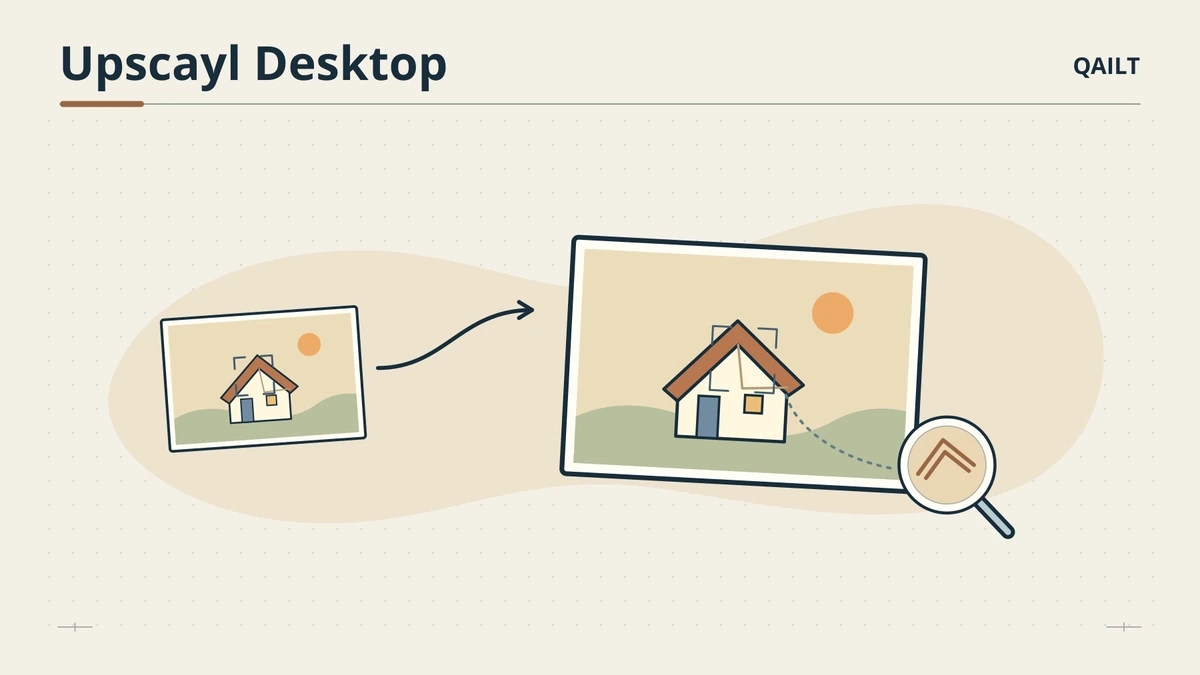
Hypothetical example: enlarge a fictional illustration of a paper house. Compare the enlarged copy with the unchanged original at identical display size, looking for altered outlines or invented textures rather than assuming the result is an improvement.
Getting started
First check your GPU’s Vulkan compatibility. Then prepare a nonsensitive illustration and preserve its original. For an initial evaluation, choose a reasonably sharp image rather than expecting the application to rescue a heavily blurred photograph.
For another image creation and editing tool, see the profile for Magnific — Image.