
Translate a PDF and keep its layout: which tool should you use?
Compare DeepL, Adobe Express and Google Translate for PDFs. Check scans, meaning, fonts and exported pages with a practical review exercise.
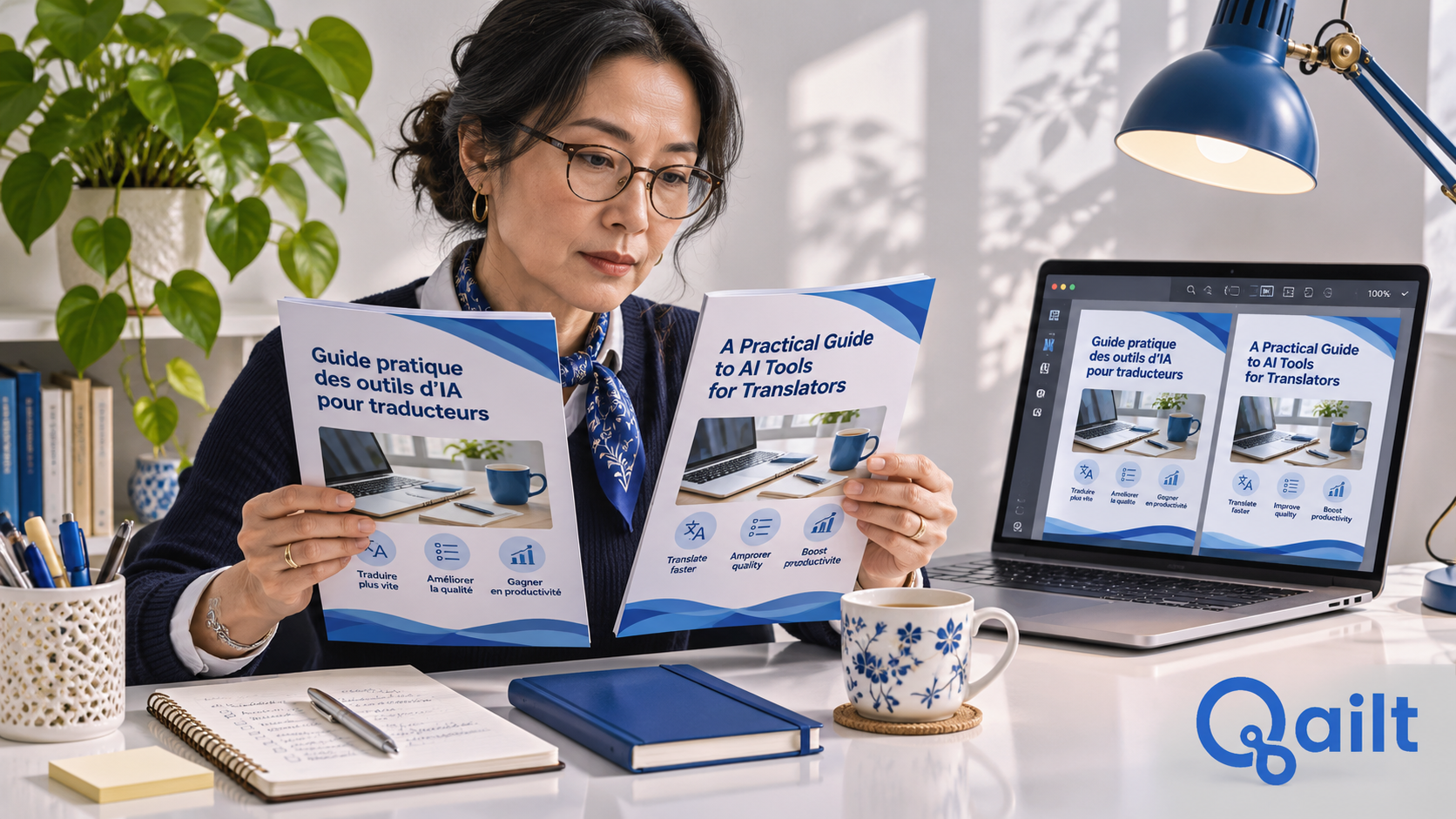
To translate a PDF while preserving its layout, choose a tool that processes the whole file, then check the translation and exported document separately. DeepL is worth considering for text-heavy documents; Adobe Express for visual material you need to adjust. Google Translate can help with a simple digital PDF on a computer, but its document workflow does not translate text in images or scanned pages.
None of these choices removes the need to check the result. A faithful translation can still cut off a heading; a visually similar document can leave a caption untranslated. The method below separates appearance from meaning. QAILT did not benchmark these products for this guide.
Ask for the source file first
Before buying a subscription, look for the Word, PowerPoint or other editable file used to create the PDF. PDF is often a distribution format rather than the best starting point for editing text. Translating the source and creating a new PDF can let you adjust blocks without rebuilding the page.
If only the PDF exists, try selecting a sentence. If no characters can be selected, the page may be an image requiring optical character recognition, or OCR. Check several pages: one document can mix digital text, scans and screenshots. A readable opening paragraph does not establish that the entire file can be processed.
Three options for different needs
| Need | Option to examine | Watch for |
|---|---|---|
| Report or mainly textual document | DeepL file translation | Scan quality and editing options |
| Brochure or visual material to adapt | Adobe Express | Fonts, text size and expanding boxes |
| Understanding a simple digital PDF | Google Translate on a computer | Text in images and scans remaining untranslated |
| Document where every detail needs approval | Assisted translation with qualified review | Separate language and visual checks |
DeepL: check the format and its exceptions
DeepL file translation aims to retain document formatting. It requires an account; available formats and sizes depend on the plan. Translating pasted text is not the same workflow as translating a file with its structure intact.
Scans, fonts and large images can affect the result. Try the source file if the PDF translation is unsatisfactory. Some plans offer DOCX output for editing. PDFs exported from CAD files, such as floor plans, are not supported in this workflow.
Think about who will correct the document afterwards. If several paragraphs need editing, an editable output may matter more than a PDF that initially looks similar. Start with a short, representative copy rather than spending your allowance on a long report before checking the workflow. Check what your account includes; do not assume a text-translation subscription covers every file operation.
Adobe Express: consider it for visual material
Adobe Express lets you choose pages and text objects to translate, with tone options. That can suit work where some blocks, such as a brand name or product reference, should remain unchanged. Verify the features available in your account before building a process around them.
Adobe Express may replace fonts or adjust text sizes or boxes to accommodate the translation. Preserving style is therefore not the same as producing an identical page. Compare the exported PDF, not only the editor preview.
For a brochure, inspect small blocks first: buttons, prices, callouts and footers. A longer translated paragraph can remain readable while displacing another element. Adjusting the layout is acceptable when meaning and hierarchy remain intact. The important question is whether the recipient receives a complete, understandable document, not whether every line ends in the original position.
Google Translate: distinguish digital PDFs from scans
Google Translate’s Documents workflow accepts PDFs on a computer, within Google’s stated limits: 10 MB and 300 PDF pages when checked. Text in images and scanned pages may appear in the output without being translated. This workflow is not available in the same way on small screens or mobile devices.
That distinction matters: a page still being present does not mean it has been translated. Identify all the regions that need a language change before uploading, then locate them after downloading. Imperfect formatting may be acceptable when you only need to understand a document; distribution to customers requires a proper review.
An exercise for comparing outputs without inventing a score
Create a fictional page headed “Présentation du service”. Add a short paragraph, a two-column table, a footnote and a small callout. Use this original French text: “La formule inclut deux révisions. Les demandes reçues après vendredi seront traitées lundi. Le montant indicatif est de 1 250,50 EUR.”
Put reference “QLT-004” in the table and “Exemple, non contractuel” in the footer. Add an image containing the non-editable word “Brouillon”. That last region is there to reveal a partial translation, not to penalise a tool that explicitly does not translate images.
The English result must retain two revisions, the condition about requests received after Friday, Monday processing, the monetary value and the exact reference. Number formatting can become “EUR 1,250.50” without changing the amount. The footer must remain a non-binding-example warning rather than becoming a promise. If the draft label in the image stays unchanged, handle it separately.
Open both PDFs side by side. Count the blocks and check the table, footnotes and page boundaries. Do not assign an overall accuracy score from this single example. Instead, record necessary corrections and any repair time you actually measured. Use the same file and acceptance criteria for each candidate, so the comparison reflects your task rather than different inputs.
Check in the right order
- Completeness: all expected pages and regions exist and use the intended language.
- Meaning: numbers, dates, negatives, conditions and proper names remain correct.
- Readability: no clipped text, overlap or missing characters.
- Navigation: links, cross-references and page numbers still make sense.
- Export: the downloaded file is the reviewed version, not an earlier draft.
If the first obstacle is a scan, start with our tutorial on making a scanned PDF searchable. For a table you need to analyse rather than translate, use our PDF-to-Excel guide: checking extracted values is a different task from checking translated language.
Frequently asked questions
Can identical formatting be guaranteed?
Not across all files. Translation length, fonts and document structure affect the outcome. Decide what must remain identical and what can be rearranged. A slightly taller text box may be harmless; a missing exception or clipped price is not.
Should I upload the whole document for the first trial?
No. An authorised excerpt containing the real difficulties is enough to compare workflows. Avoid sending confidential information to an unapproved service. Always retain the original and label working copies clearly so they cannot be mistaken for a validated translation.
Which option is most economical?
The one that meets your needs with the least correction and unnecessary subscription spending. A working translation may be sufficient for reading. For publication, include a competent human review: an attractive page is not evidence of faithful translation. Check your existing tools before paying for another service, then compare the complete process rather than just the initial conversion.
Put it into practice



Read next
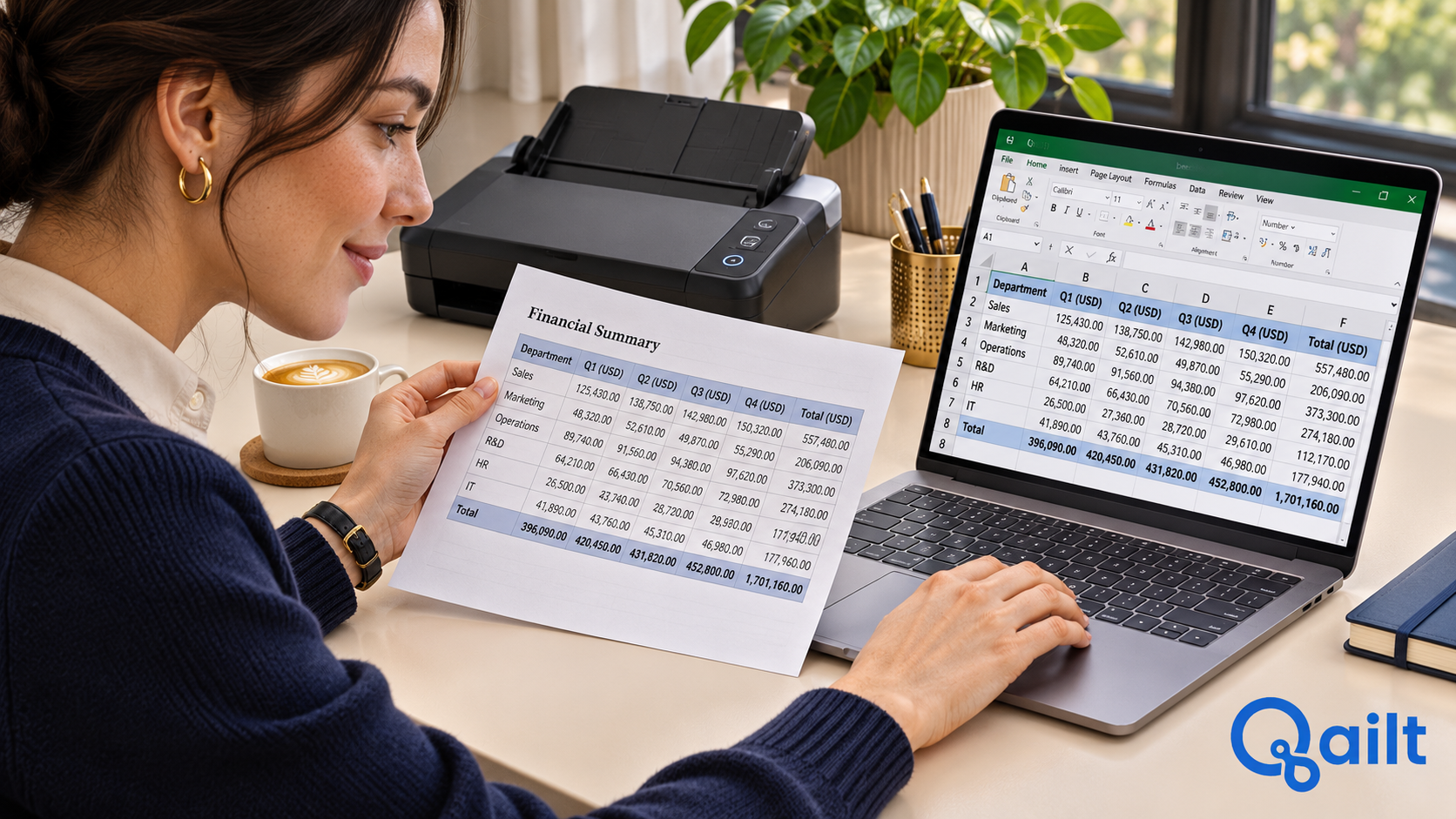
Convert PDF tables to Excel: AI, OCR and accuracy checks
Compare Power Query, Acrobat, Foxit and ChatGPT by document type. Check rows, amounts and missing values with a worked example before trusting an export.
ElevenAI opens early access for meeting notes on Mac
ElevenLabs introduces a Mac app with dictation, speaker-labeled transcripts, and action items. Free early access is available by sign-up.

Photoshop 28.0 removes objects and their shadows or reflections
Photoshop’s Remove tool can erase an object and the traces it leaves in the scene. Find out where to use the option and how it uses generative credits.