
Convert PDF tables to Excel: AI, OCR and accuracy checks
Compare Power Query, Acrobat, Foxit and ChatGPT by document type. Check rows, amounts and missing values with a worked example before trusting an export.
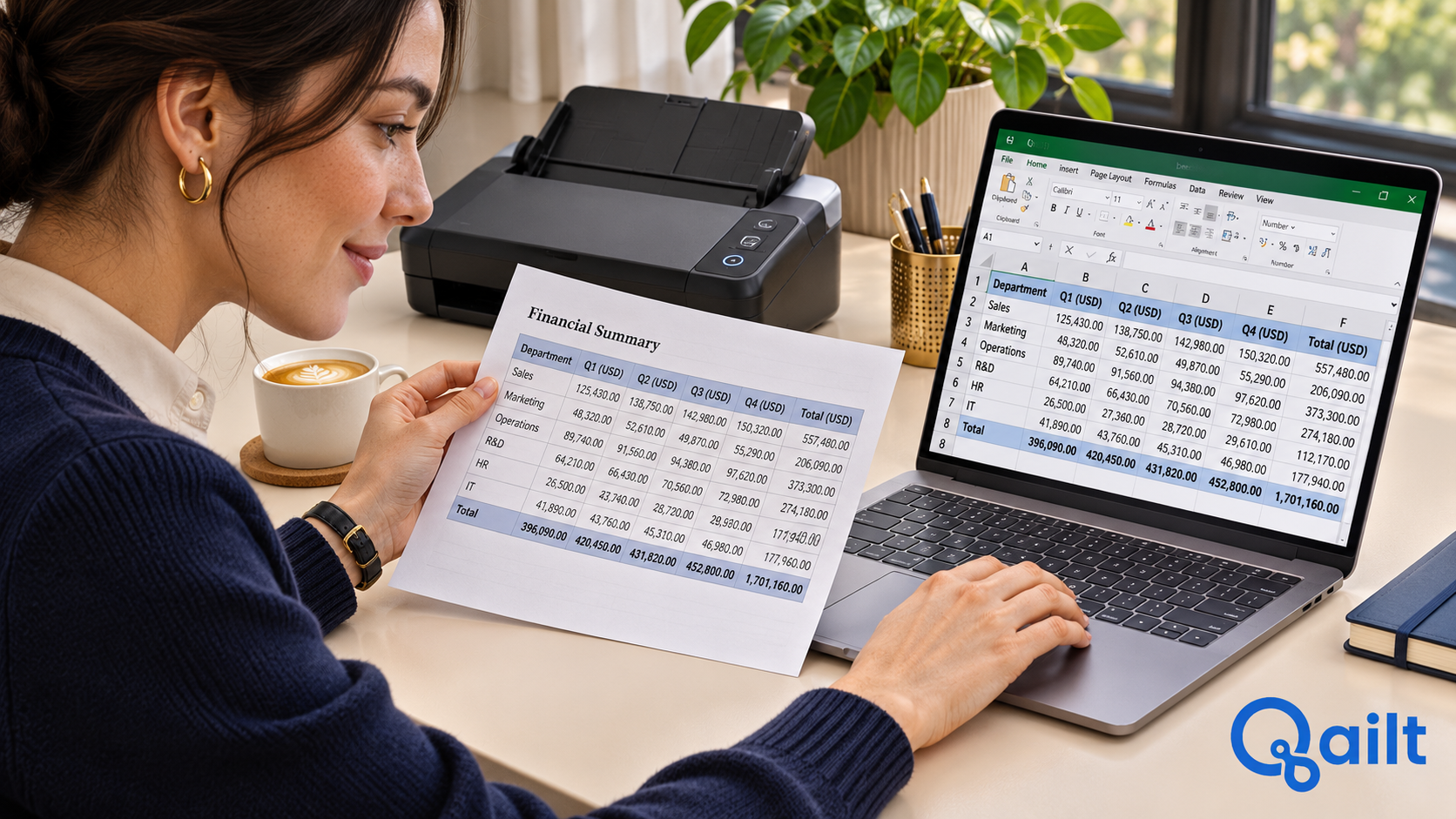
To convert a PDF table into Excel, start with the document, not the AI label. A PDF with selectable text may suit Power Query. A scan needs text recognition first, available in tools such as Acrobat or Foxit PDF Editor. An assistant such as ChatGPT can help restructure and check data, but a persuasive answer does not establish that every cell was extracted correctly.
Our recommendation is to try a tool you already have on two representative pages. Compare rows, identifiers and amounts before considering time saved. This guide compares documented capabilities; it is not a ranking based on accuracy tests conducted by QAILT.
Which tool fits your PDF?
| Situation | Option to consider | Decisive check |
|---|---|---|
| Digital table and recurring workflow | Power Query in a compatible environment | Do the transformations work on the next file? |
| Scan or occasional XLSX export | Acrobat or Foxit PDF Editor | Were characters and number separators recognised? |
| Poorly organised columns after extraction | ChatGPT as a supporting tool | Can each correction be traced back to the PDF? |
| A few hard-to-read rows | Manual entry with a second check | Was the value verified rather than guessed? |
A conventional converter is not necessarily less suitable than a generative tool. The goal is a usable workbook, not AI at every step. If the sender can provide the original spreadsheet, that avoids an unnecessary conversion altogether.
1. Power Query: for a repeatable transformation
Microsoft’s documented PDF connector detects tables and lets you load or transform the data. Options include page ranges and combining consecutive tables. Microsoft notes that multiline rows may need cleanup. Availability depends on the host product: check your Excel version rather than assuming that every environment offers the same connector.
This approach is worth considering for a recurring report with a stable layout. Keep the cleaning steps and test the following month’s file before treating the workflow as reusable. A new column or a changed heading may invalidate a previously correct transformation. Do not automatically remove the first row of every page: it might be a repeated heading, but it could also be real data.
2. Acrobat: configure conversion before fixing the result
Acrobat exports to XLSX, with settings for worksheets, number separators and text recognition. Those settings matter when a French amount such as “1 250,50” must become a numeric value. They do not remove the need to open the output and check its cells.
Choose an arrangement that makes checking easier. A worksheet per page helps locate a row’s origin, while a combined table simplifies subsequent calculations. Save the raw export before merging sheets. Check that your account includes the required conversion before subscribing: this guide does not assume free access or identical allowances for every user.
3. Foxit PDF Editor: another PDF, OCR and export workflow
The Foxit PDF Editor manual for Mac documents Excel export and text-recognition settings. Some options depend on the edition. Check the documentation for your installation rather than copying Mac menu instructions directly into a Windows workflow.
For a scan, make the text usable first. Our tutorial on making a scanned PDF searchable with Foxit covers that stage. Searchable text is not yet a correct table: columns, merged cells and line breaks still require inspection. The Foxit PDF Editor profile places this task alongside the software’s other uses.
4. ChatGPT: helpful after extraction, not proof of accuracy
ChatGPT’s data-analysis documentation describes support for PDFs and spreadsheets, depending on account capabilities, and reviewing generated calculations and code. For conversion, ask for a checking table with source pages and uncertain cells, rather than a summary of the document.
An assistant can suggest a structure or flag inconsistencies. Do not ask it to fill gaps: an unreadable cell is neither zero nor permission to invent an amount. Keep raw values beside normalised values. For the next stage, our guide to analysing Excel and CSV data separates cleanup from interpretation.
A repeatable exercise before converting a real document
The following fictional dataset is designed to check your method, not report a product test. Copy the table into a document and export it as a PDF. You can also print and scan a copy to examine the scanned-document case separately.
| Reference | Amount EUR | Comment |
|---|---|---|
| 0012 | 1 250,50 | Main order |
| 0013 | -50,00 | Credit note |
| 0014 | Amount not provided | |
| 0015 | 0,00 | Free item |
The expected result contains four distinct references, stored as text to preserve leading zeros. Three amounts are provided; their sum is EUR 1,200.50. Reference 0014 has no amount, so that sum is not a complete total. Reference 0015 has a known zero amount. The credit note must remain negative. The example deliberately uses French number formatting in the source; the underlying numeric values must remain the same in an English workbook.
Next, insert a page break and repeat only the heading. After conversion, you should still have four data rows. Compare a version in which “Main order” wraps onto two lines: that change must not create a fifth order. Finally, check the numeric cells with an Excel calculation, not just by looking at how the table is displayed.
An instruction you can adapt for an assistant
Extract only the table’s data rows from this PDF. Keep references as text. Return columns for page, reference, raw amount, numeric amount and issue. Never replace missing or unreadable values with zero. Do not calculate missing data. Separate headings and subtotals from data rows. Explain transformations and provide an output I can check. Stop if you cannot read a page.
This instruction reduces ambiguity, but it does not guarantee extraction quality. Check all critical values and unusual rows. For an important document, compare every row with the PDF before using the output in a decision.
The checks that actually matter
- Structure: the same number of meaningful rows, no shifted columns and no headings mixed into data.
- Types: identifiers stored as text, amounts as numbers and dates interpreted unambiguously.
- Exceptions: blank cells distinguished from zero, negative signs retained and unreadable values flagged.
- Traceability: the original PDF and raw export retained, with a way to locate each source page.
- Confidentiality: use an approved environment before uploading documents containing personal or commercial information.
Make the comparison fair by giving each candidate the same pages and the same acceptance rules. Record the number of corrections required, whether an editable export is available and whether another person can reproduce your checks. Do not turn a single successful sample into a claim of perfect accuracy on every document.
Frequently asked questions
Do I need a dedicated AI subscription?
Not necessarily. Check your existing software first and compare correction time on the same sample. A cheaper conversion that requires lengthy manual repair may still be a poor choice. Equally, a more expensive subscription is not justified merely because its feature name includes AI.
Does a correct total validate the file?
No. Two errors can cancel out. Check references, missing rows and individual amounts too. A reassuring total does not replace reconciliation with the source.
Which option should I choose in the end?
For a recurring process, favour a reproducible method. For an occasional scan, consider a PDF editor with OCR. Use an AI assistant to speed up restructuring and explanations, without delegating the decision that an uncertain value is correct. Keep the source and your correction record so someone else can review the result.
Put it into practice


Related tools

Foxit PDF Editor
PDF editor with an AI assistant that summarizes documents or answers questions about their content.
Read next

Translate a PDF and keep its layout: which tool should you use?
Compare DeepL, Adobe Express and Google Translate for PDFs. Check scans, meaning, fonts and exported pages with a practical review exercise.

ElevenAI opens early access for meeting notes on Mac
ElevenLabs introduces a Mac app with dictation, speaker-labeled transcripts, and action items. Free early access is available by sign-up.

Photoshop 28.0 removes objects and their shadows or reflections
Photoshop’s Remove tool can erase an object and the traces it leaves in the scene. Find out where to use the option and how it uses generative credits.