Make a scanned PDF searchable with Foxit PDF Editor
Run optical character recognition on a scanned PDF, choose its language, and verify that its text is searchable.

Objective
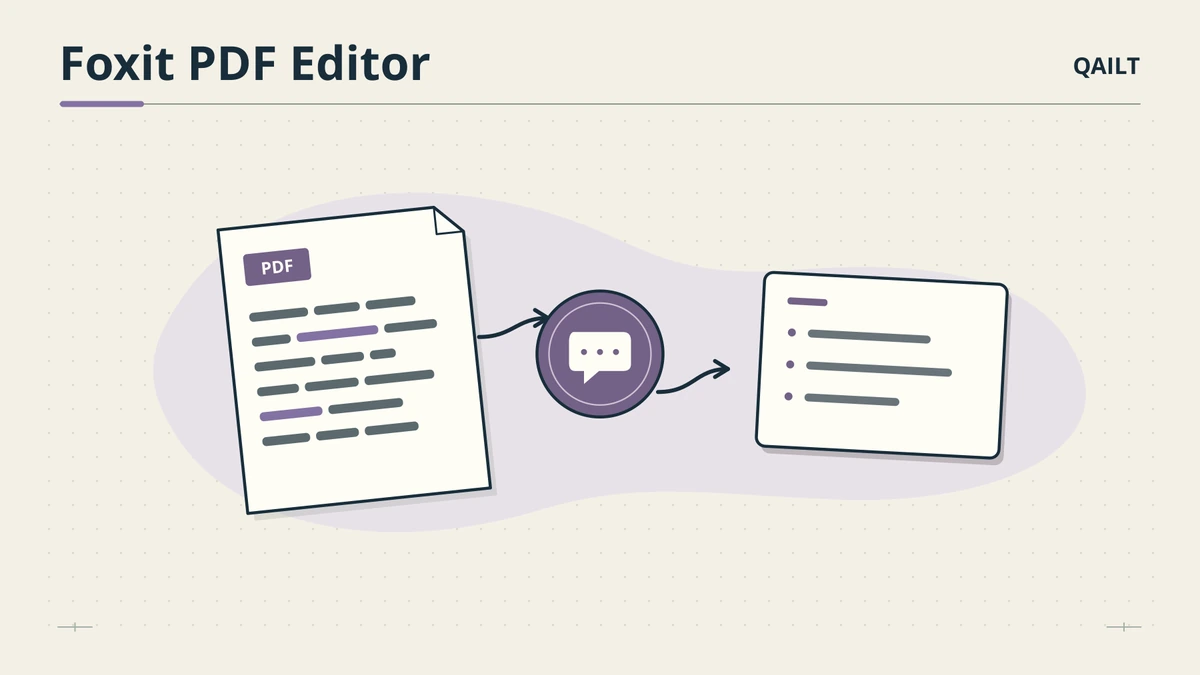
The aim is to make an image-based scanned PDF searchable. OCR recognizes characters and adds a text layer. For this exercise, preserve the scanned image rather than produce editable text.
Wholly fictional example, limited to one page: use a copy of a document containing only the sentence “À Lyon, Léa a reçu 24 dossiers le 6 février.” This known French sentence provides words, numbers, and accented characters to check.
Requirements
Foxit PDF Editor for Windows must already be installed, with its OCR component available. If that component is missing, stop the exercise: installing it is outside this procedure.
Have the fictional one-page scanned PDF ready and work only on a copy. Keep the original untouched and plan to save a separate output file. Also retain the reference sentence so you can compare recognized text with the intended content.
Steps
The command names below are the supplied English interface labels. Follow this sequence in the Windows application.
- Open the copy of the fictional PDF in Foxit PDF Editor and confirm that you are working on the intended page, not the original file.
- Go to Convert > Recognize Text > Current File to start recognition for the open file.
- Set the page range to include the exercise’s single page.
- Choose French as the recognition language because the reference sentence is in French.
- Select Searchable Image Text (original image) to add a searchable layer while retaining the image. Do not select Editable Text.
- Confirm with OK to apply recognition. If the OCR component is unavailable, stop without attempting to install it.
- Save the processed document as a separate output file without replacing the original.
- In that file, search for “dossiers”, then copy the recognized sentence and compare it with both the image and the reference sentence.
Expected result
The target is a separate file that retains the scanned image and includes a text layer supporting search and copying. Searching for “dossiers” should locate that word if it has been recognized correctly.
Having a searchable layer does not guarantee that the recognized characters are accurate.
Checks
Compare the copied sentence with the image, word by word. Pay particular attention to “À”, “Léa”, “reçu”, and “février”, plus the numbers 24 and 6. Successfully finding one word does not validate the rest of the page.
Also confirm that the original remains separately preserved and that the processed file still contains the expected image. If searching or copying fails, recheck the processed page, recognition language, and output mode.
Pitfalls to avoid
Do not confuse Searchable Image Text (original image) with Editable Text: the latter is not the requested mode. Text that can be copied may still contain recognition errors.
If a word is missing from search results or a number differs, do not treat the output as validated. Compare it with the image and revisit the relevant recognition settings, continuing to work on a copy.
Next steps
Keep the output file together with your checks. Before reusing a quotation or number, verify the relevant passage against the image. If a discrepancy persists, rely on the image rather than the OCR text for that passage.