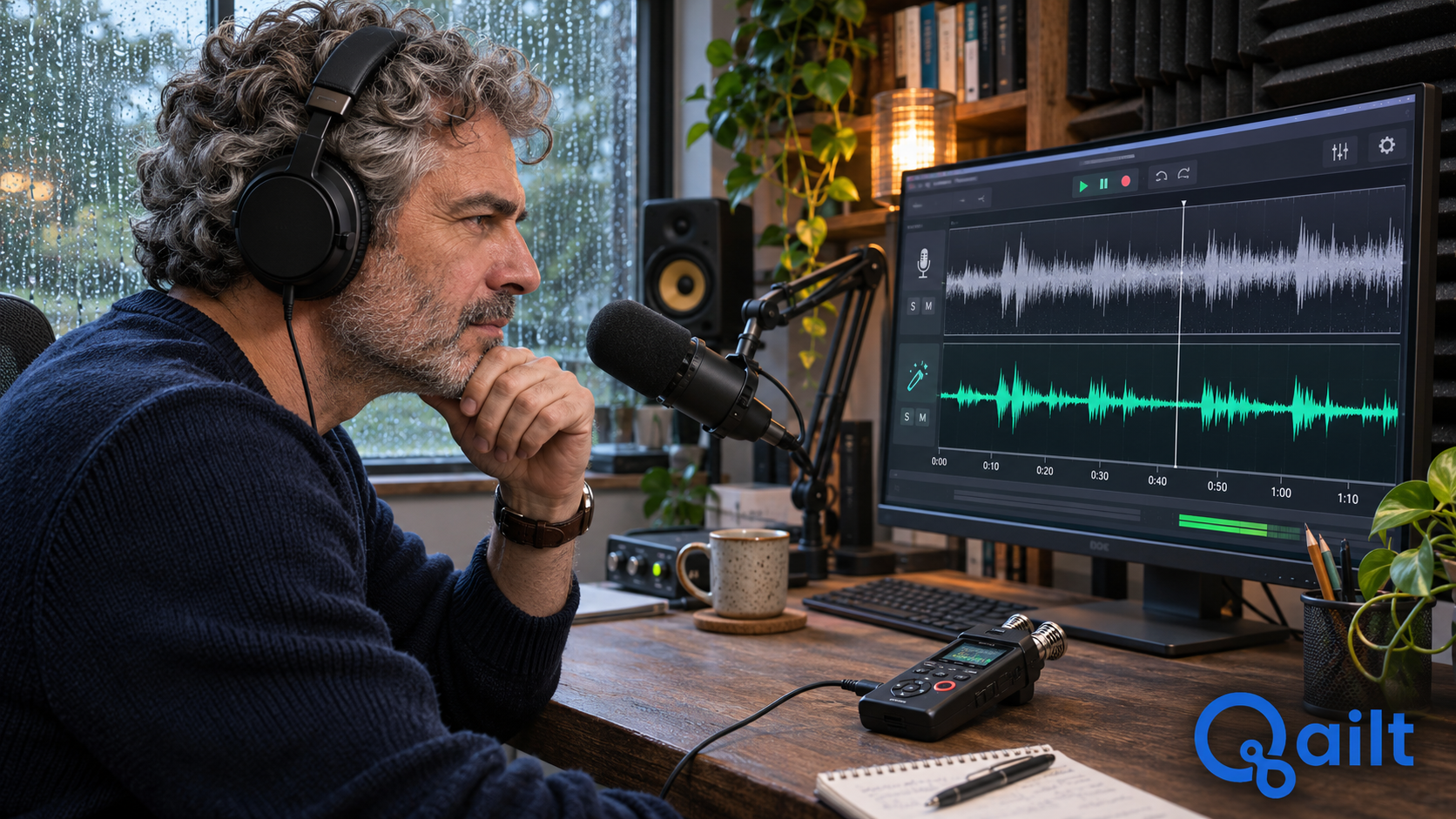
Mix separated tracks in Suno Studio 2.0
Separate a song into stems to balance levels, shape frequencies and adjust transitions in Suno Studio 2.0.

What you will create
Rebalance a song in Suno Studio using separated parts called stems: vocals, drums or other instrumental groups. The aim is to make the main element clearer without damaging the rest. Automatic separation does not necessarily recreate the original recording-session tracks.
Before you start
Choose a song you are permitted to modify and retain a listening reference. Check your Studio access, extraction costs and available export options. Do not assume that listening, generation, extraction and downloading share the same limits. Check the track’s distribution conditions separately.
Step-by-step
- From your library, open the song in Studio using Open in Studio in the Edit menu, if available.
- Right-click the clip, then open Split Stems, choose a suitable split and check the cost before extraction. Do not extract every instrument if you only need vocals separated from accompaniment.
- Listen to the separated parts. When using them to replace the original mix, mute the original track to avoid double playback.
- Adjust levels first. Add an effect only to address an identified problem. Regularly compare the result with your reference song.
- In Export, choose the full mix, selected range or Multitrack according to your needs. Check the resulting file, not just playback inside Studio.
Example to adapt
Exercise: a song whose chorus becomes difficult to understand when the accompaniment enters. Before changing anything, identify the exact phrase that disappears. The goal is not “professional sound”, but “understand this phrase without making the chorus feel empty”.
Start by lowering the accompaniment level slightly, then listen to the whole song. To restrict that reduction to the chorus in Studio 2.0, select the track and open Automation (Shift+A). Right-click its volume control and choose Automate; double-click in the automation lane to add points. Include a return to the original level after the chorus. Listen to the transitions to avoid an abrupt drop or jump. Turning the volume knob without automation does not, by itself, create a setting limited to that passage. If the words become clear, do not simultaneously change the voice’s pitch, speed and tone. Then listen to the transition from the verse: a locally successful correction can create a level jump at the chorus entrance.
Retain version A with the original setting and version B with your adjustment, using the project’s available save options. Compare at similar perceived volume. This exercise is a listening protocol, not a result generated or measured in Suno.
Check your result
- Is only one version playing, without layering the original mix and stems?
- Are the words intelligible in the full mix, not just when the voice is heard alone?
- Can you hear drum leakage in the voice or a metallic texture after separation?
- Do phrase beginnings and endings still sound natural?
- Does the exported file contain the correct range, all intended tracks and an ending that is not cut off?
Common problems
Everything suddenly sounds louder: first check for double playback. A stem sounds strange alone: also assess its effect in the complete song; making it perfect in isolation is not always useful. Processing damages the voice: return to the previous setting and reduce the intervention. The export differs: check muted tracks, time selection and the active project. Do not try to hide a major separation defect under several additional effects.
Next steps
Explore the Suno tool page. If the composition itself is not working, return to generating a song with Suno rather than trying to fix everything in the mix.