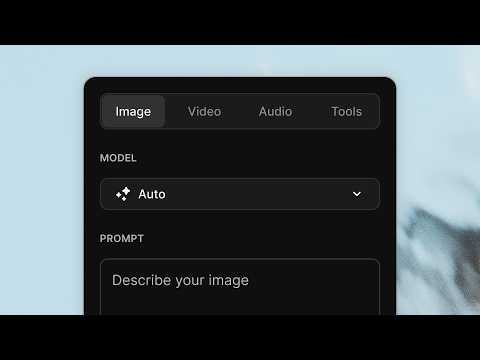
Generate variations from a reference photo in Magnific
Use a reference image in Magnific and compare variations against specific criteria, without assuming perfect subject fidelity.
What you will create
Guide Magnific with a reference image and check what remains recognizable across two settings. The aim is to compare results with a specific object, not assume every generation reproduces it exactly.
Before you start
Choose a photo you have permission to use: for example, an unbranded green mug clearly visible against a simple background. No face or customer portrait is needed. Record the features to preserve and check your account terms and credits.
Step-by-step
- In Image Generator, use Upload and then Use image to add your reference.
- Write your own description. Adding an image does not automatically write the prompt; Upload image to describe is a separate feature.
- Choose model and ratio, then Generate after checking the cost. Keep the settings for the next comparison.
- Change only the requested setting and compare both outputs against the original before downloading.
Example to adapt
First instruction: “The reference green mug, with its single handle, on a pale wooden table. Three-quarter view, whole object visible, no text or accessories.” For the second instruction, replace only the table with a white shelf.
Prepare a four-row checklist: green color, one handle, rim shape and proportions. An attractive image with an extra handle fails the check. Reject framing that hides the rim and prevents you from assessing its shape.
Check your result
- Place the original and results side by side at comparable sizes.
- Distinguish the requested background change from an unrequested object change.
- Inspect details even if the overall color looks right.
- For a product offered for sale, do not present a transformed object as a faithful photograph of the real product.
Common problems
Object drift: simplify the setting and state essential traits clearly. The prompt merely describes the original photo: check that you selected reference input rather than automatic description. Trials vary: record the settings; changing one word does not ensure all other details remain identical.
Next steps
A trained custom element such as Custom Object or Custom Character is a different approach from a one-off reference. Consider it only when repeated needs justify its data and cost; visual checking is still necessary. Documentation-based guide: no photo was uploaded and no training or generation was performed.