Pixlr: put a product photo on a white background
A simple exercise for a white background without damaging product detail.
Choose a useful source
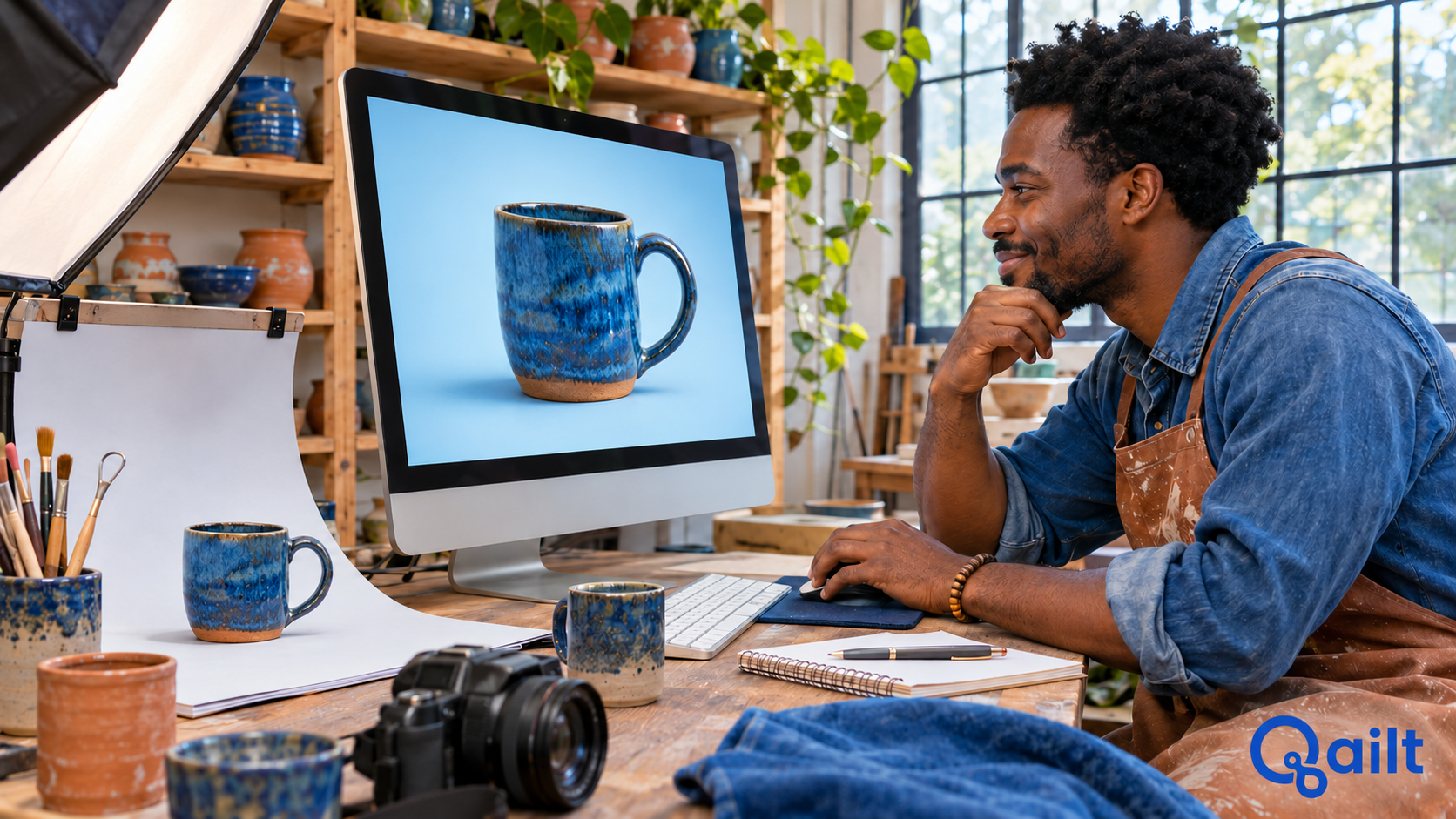
Use a photo you may process and keep the original. QAILT example: a coloured mug on a table with the whole handle visible. A sharp image makes edge checking easier.
Change the background
- Open Add White Background to Photo to access Remove Background.
- Upload the photo and wait for the cutout.
- Choose the white-background option at the top right.
- Download the PNG and open it outside the editor.
QAILT check
Inspect the handle opening, shadows, light edges and reflections. No part of the product’s shape should disappear. If the cutout fails, choose a more contrasting photo or refine edges in a suitable editor.
Prepare a series
Approve one image before processing the rest. Compare dimensions and framing, not only background colour. Check account limits before a batch; this documentary guide is not a live QAILT test.