Enable Google Ads enhanced conversions with WhatConverts
Link your Google Ads conversion settings to WhatConverts and check the status of a qualifying lead after submission.
Steps
- Connect the appropriate Google Ads account to your WhatConverts profile and check the conversion action you want to use.
- In Google Ads, open Goals, Conversions and Settings. Review the customer data terms in the Enhanced conversions section.
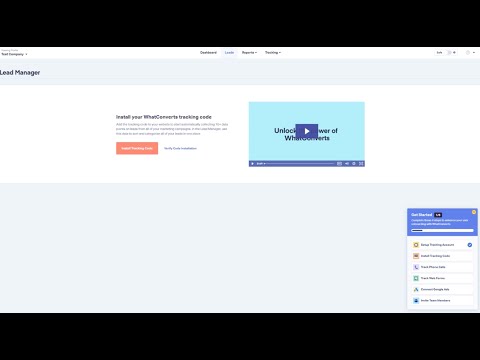
- At profile level in WhatConverts, open Tracking, Integrations and Google Ads. Edit the connection, enable enhanced conversions and save.
- Check which trigger sends the conversion. After a qualifying lead is processed, look at the Google Ads conversion status in WhatConverts and verify the action in Google Ads.
What to check
A successful send in WhatConverts confirms Google accepted the submission. Check Google Ads separately to see whether the conversion was matched and counted.
See the WhatConverts profile on QAILT.