
Who this tool is for
Airtable serves operations, project management, marketing and product teams that want to build applications around shared relational data.
These teams can organize their interfaces and workflows around the same data.
What you can do
The platform provides databases, interfaces, automations and reporting. Omni helps build applications through conversation.
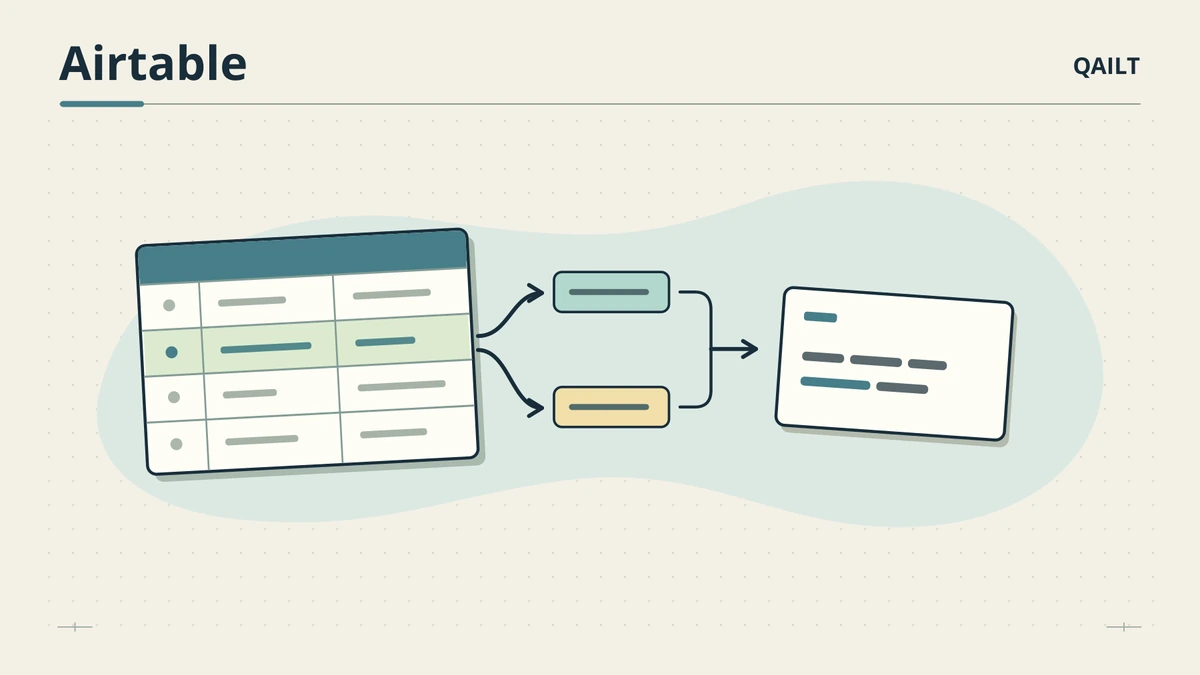
Field agents work within records. A long-text agent can follow custom instructions and use other fields from the same record. Single-select and multiple-select agents can classify information.
These AI field capabilities require a paid plan, AI credits and AI enabled in the workspace; they are distinct from the platform’s general functions.
How it works
The documented sequence for configuring a long-text field agent is below. It results in a configured field being created.
- Open a base and table, add a field, then choose Build a field agent.
- Use manual setup, which defaults to Long text.
- Write instructions specifying the task, constraints and output format. Use Insert field to insert a field from the record into the instructions.
- Select Create field to create the field.
Prerequisites
AI fields require a paid plan, AI credits and AI enabled in the workspace.
Owners and Creators can configure field agents. Editors can generate outputs. Permissions govern the actions of people and agents.
To use data in a long-text agent’s instructions, reference fields from the same record.
Limitations
With Run automatically enabled, Airtable asks whether to regenerate existing results when you save new instructions. You can choose to keep those results. Cells edited by hand are protected from automatic overwrites.
Internet search can consume additional credits, and its results need accuracy checks.
Practical example
Hypothetical example: a marketing team wants a summary of a record’s information in a long-text field.
The instructions could request a two-sentence summary, restrict its content to the referenced fields and specify the expected format. The intended output is a summary within the record, without a guarantee of accuracy.
Getting started
Before configuring an agent, define the task and expected format. To work with the record’s data, identify the fields to insert into the instructions.
Then check the plan, credits, workspace AI setting and your role. If you revise the instructions, do not assume existing outputs will update.
To keep exploring tools on QAILT, also see the Notion AI profile.